
A day you can finish.
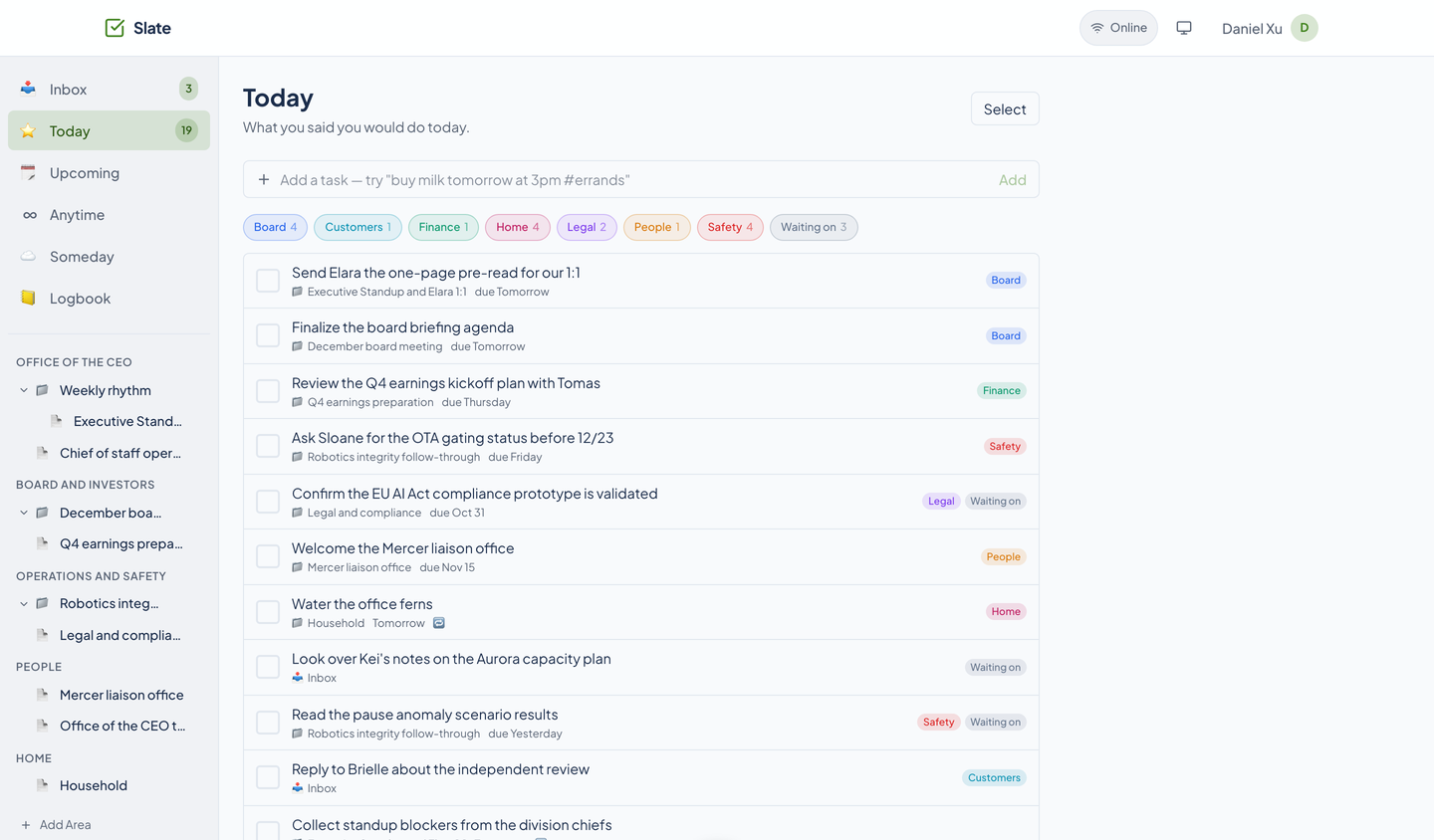
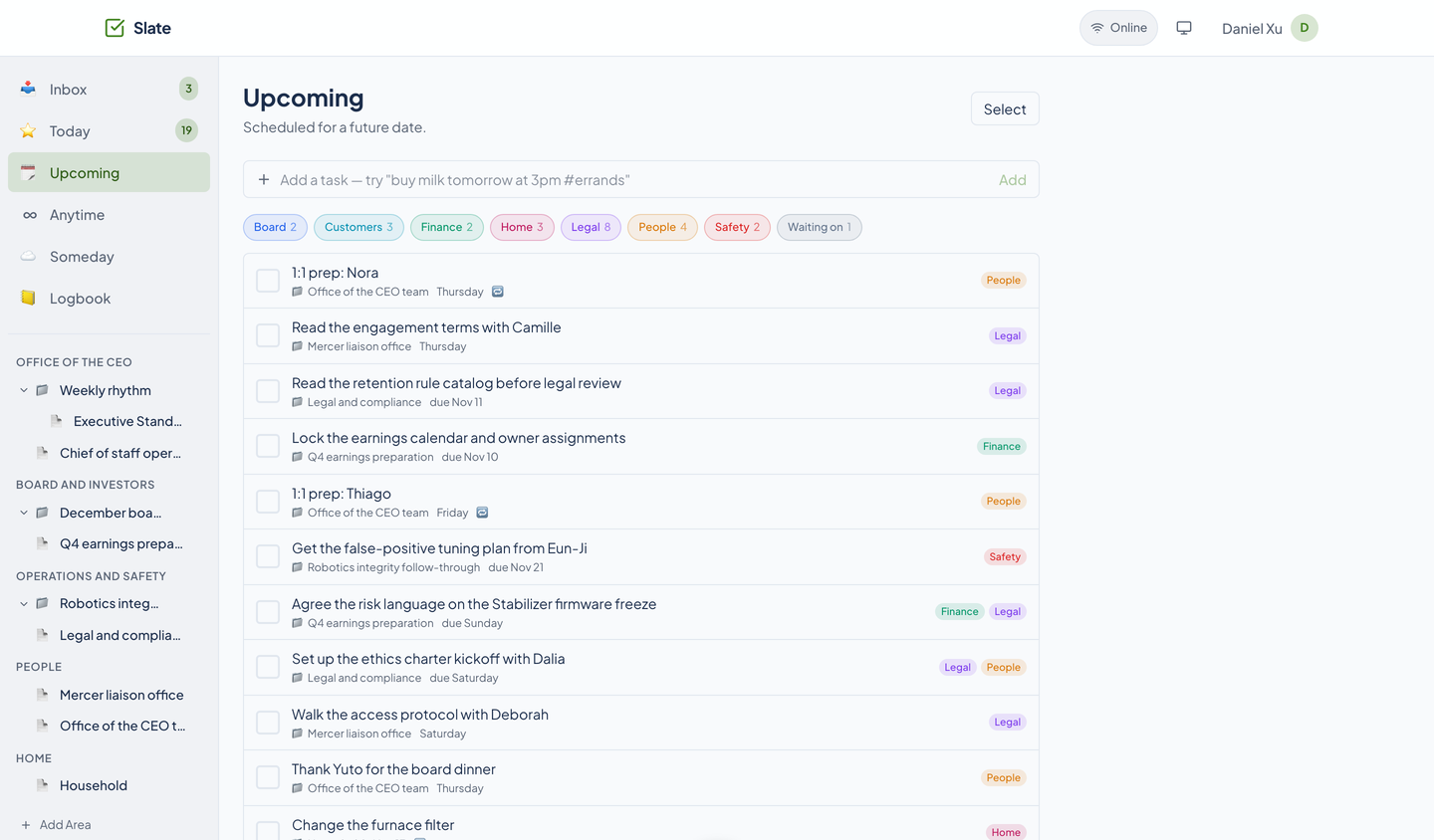
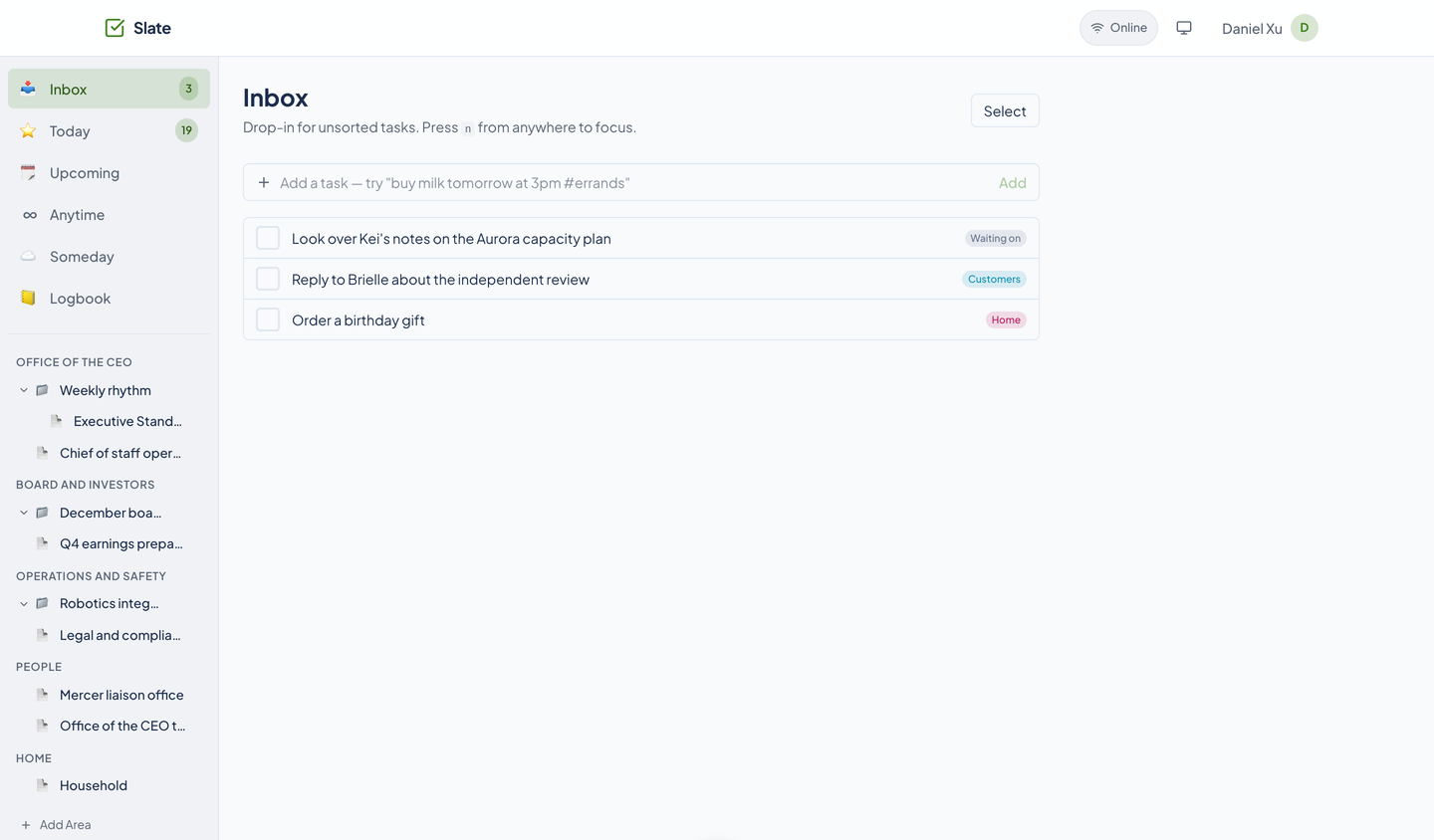
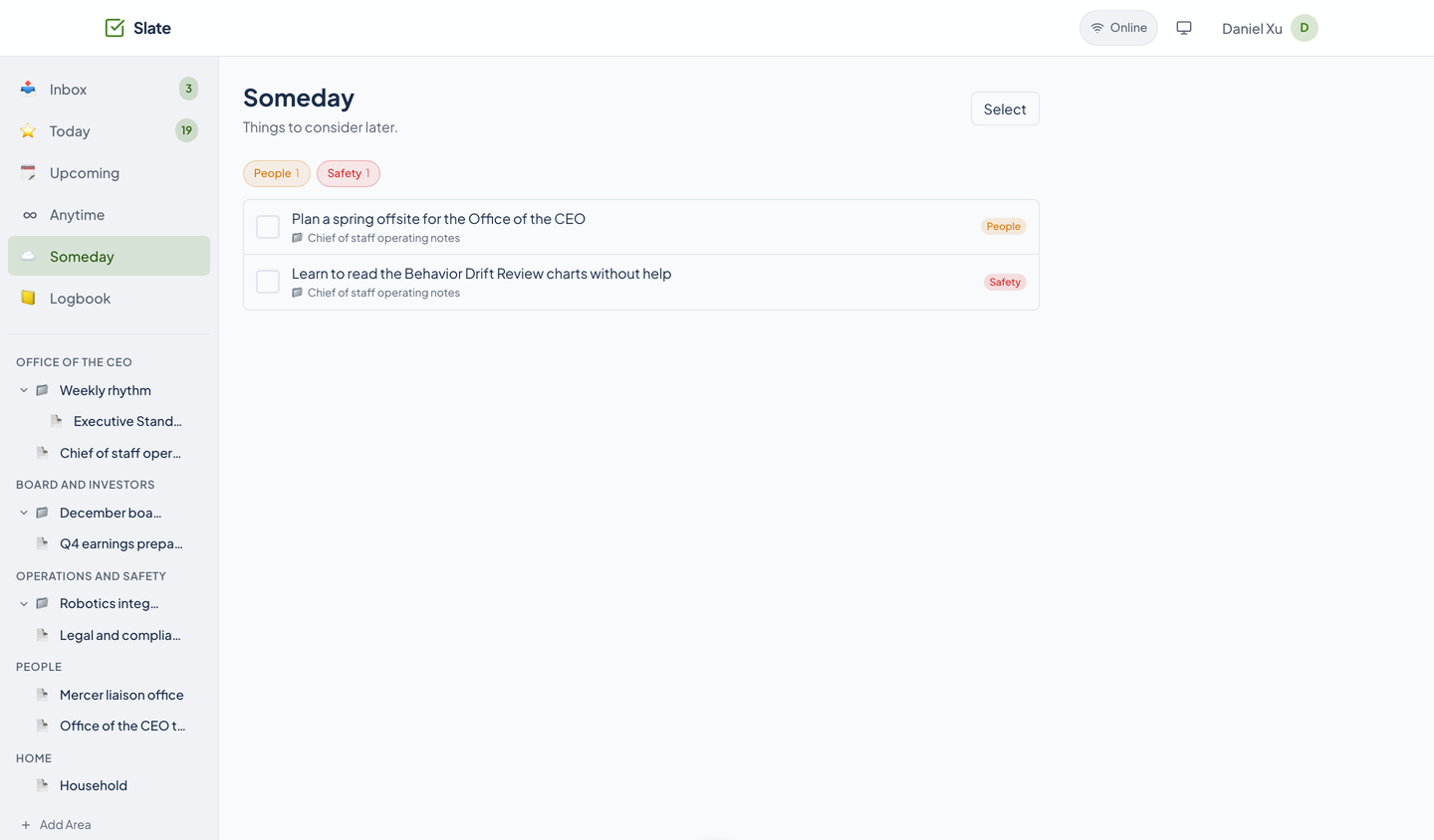
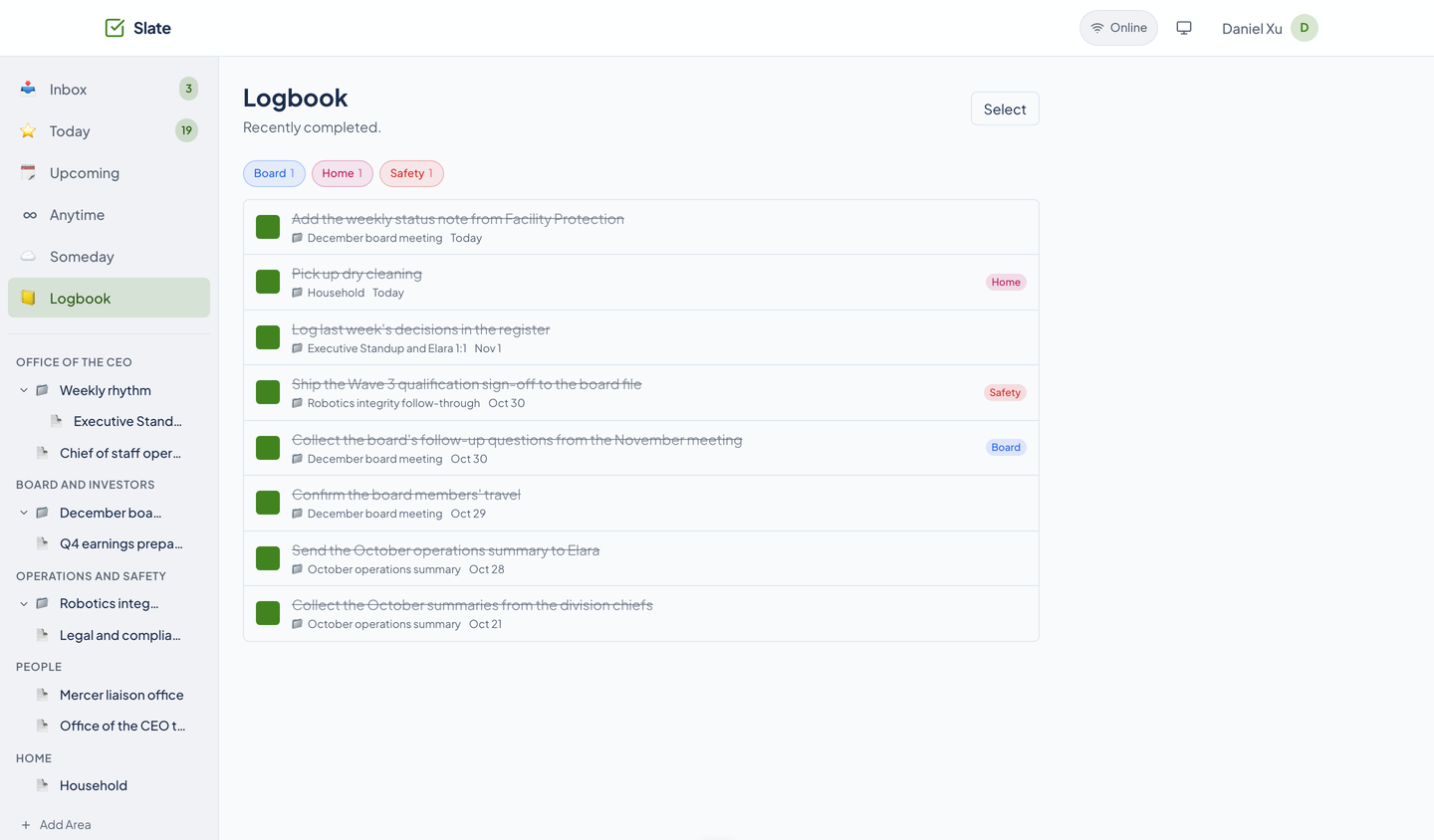
Slate sorts every task into one of six views by what you told it, not by where it lives. Every image on this page is a real capture of Slate running on the fictional StrataForge Robotics tasks of Daniel Xu, Chief of Staff.

Six smart views
They sit at the top of the sidebar, above your areas. The number beside Today is live: it updates over a WebSocket when anything changes.
| Inbox | Unsorted tasks, the place a quick add lands when you name no project. Press n from anywhere to start typing. |
|---|---|
| Today | What you scheduled for today or earlier (by start date) and anything still in the Inbox. A due date alone does not put a task in Today. |
| Upcoming | Tasks with a start date in the future. |
| Anytime | Tasks with no start date, in any list but the Inbox: the pool you pull from when Today is done. |
| Someday | Things to consider later. They stay out of Today and Upcoming until you move them. |
| Logbook | What you finished, most recent first. |
Quick Add reads a sentence
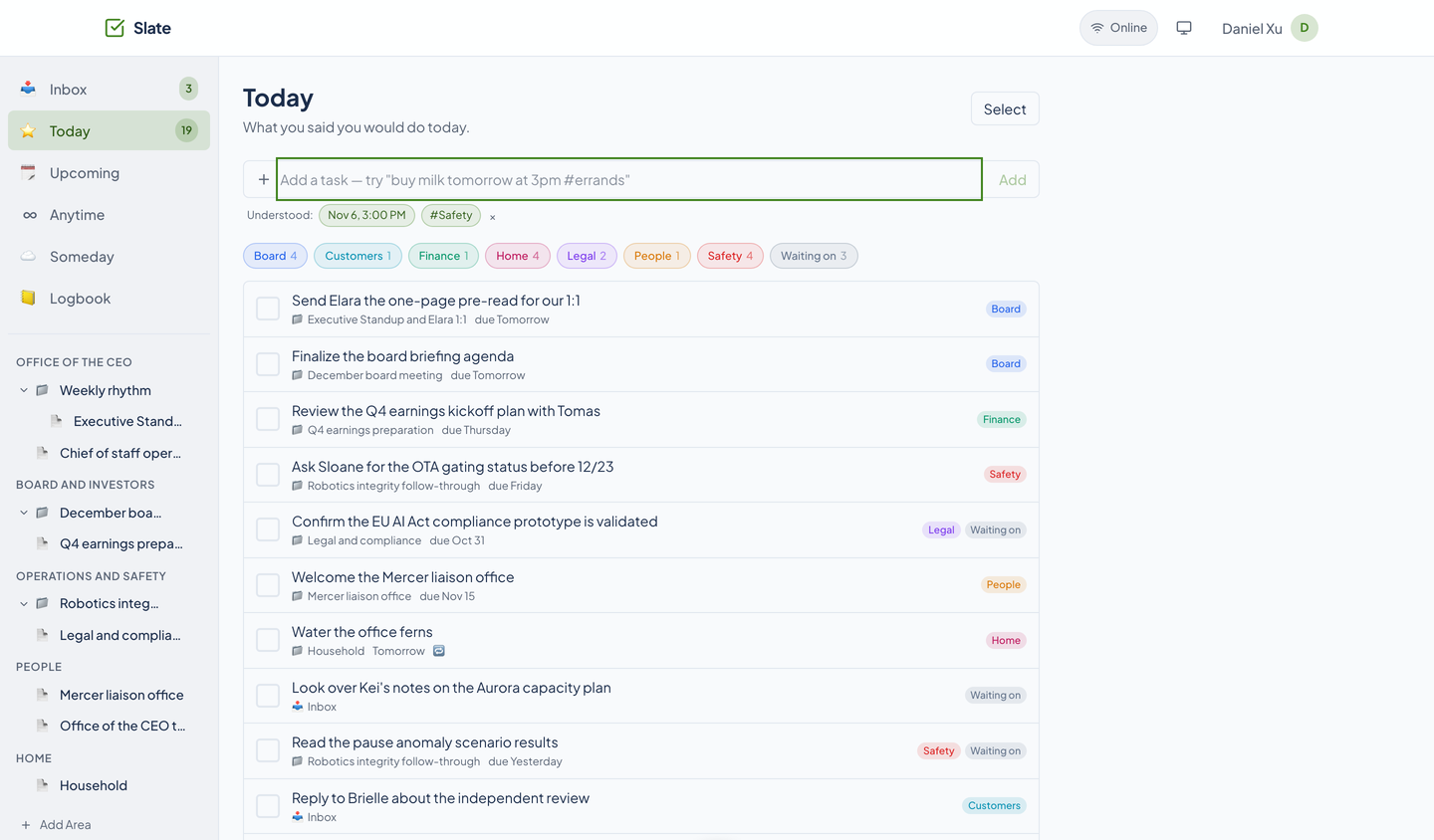
The bar at the top of every view takes a sentence. A parser on the server pulls out what it recognizes and shows it to you in a line that begins with Understood, so you can see whether it got it right before you move on.
It reads dates (today, tomorrow, in 3 days, next week, a weekday), a time of day (at 3pm), a repeat (every other Tuesday), tags with a hash (#safety), and a target with an at sign (@area//list). Whatever it does not recognize stays in the task's name.
- Press n from anywhere in the app to focus the bar.
- Times are stored as UTC and read in your own time zone: the web app sends your browser's zone with every request, so 3pm means 3 PM where you are, and Slate saves the zone on your profile for agents, which have no browser.
- Offline, an add is queued on your device and replayed when you reconnect, without making a duplicate.
The command palette
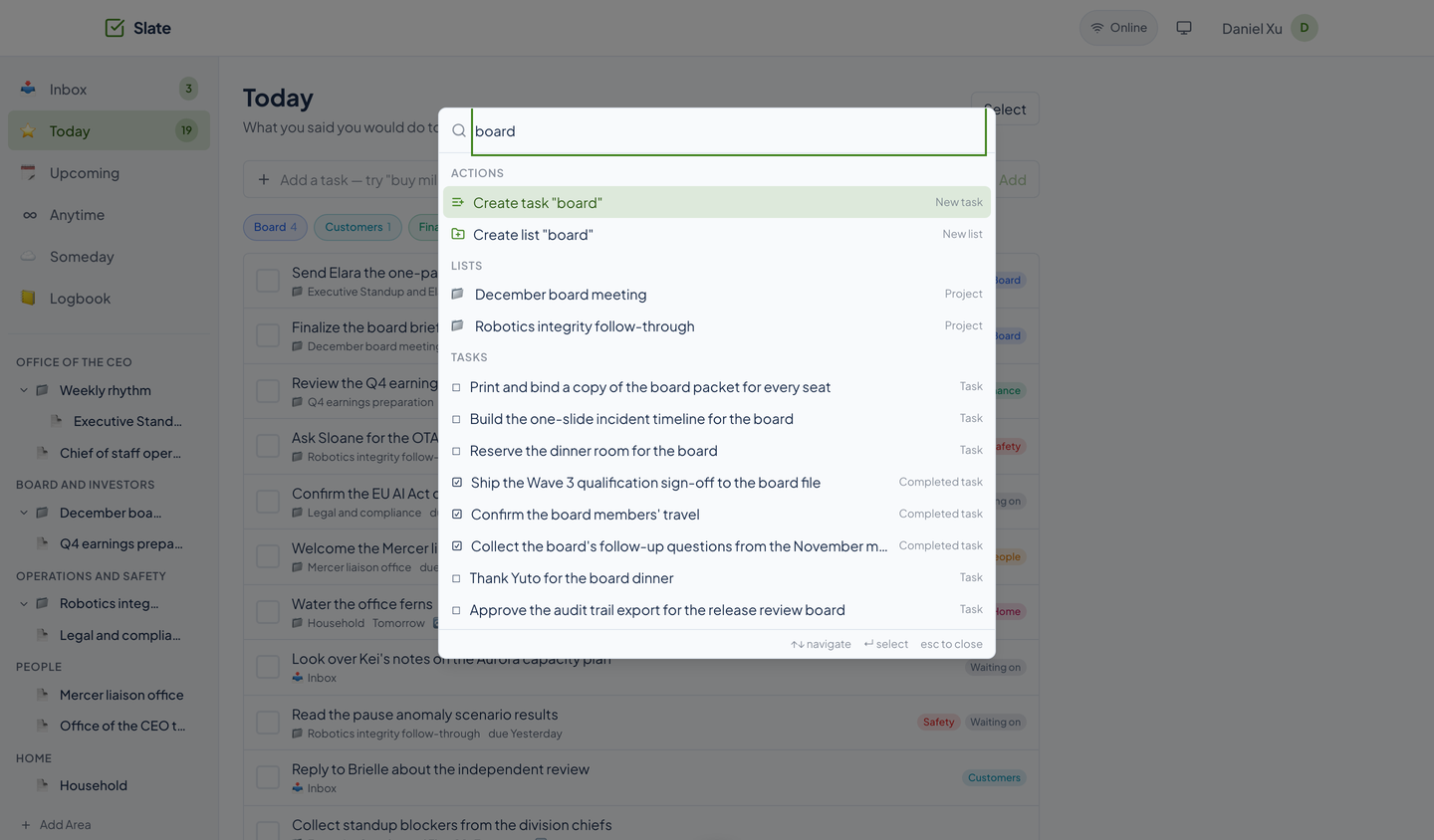
Press Ctrl+K, or Cmd+K on a Mac. Type, and Slate searches your lists and tasks as you go, including finished ones. The first rows offer to create a task or a list from what you typed. The arrow keys move, Enter chooses, and Escape closes.
The task inspector
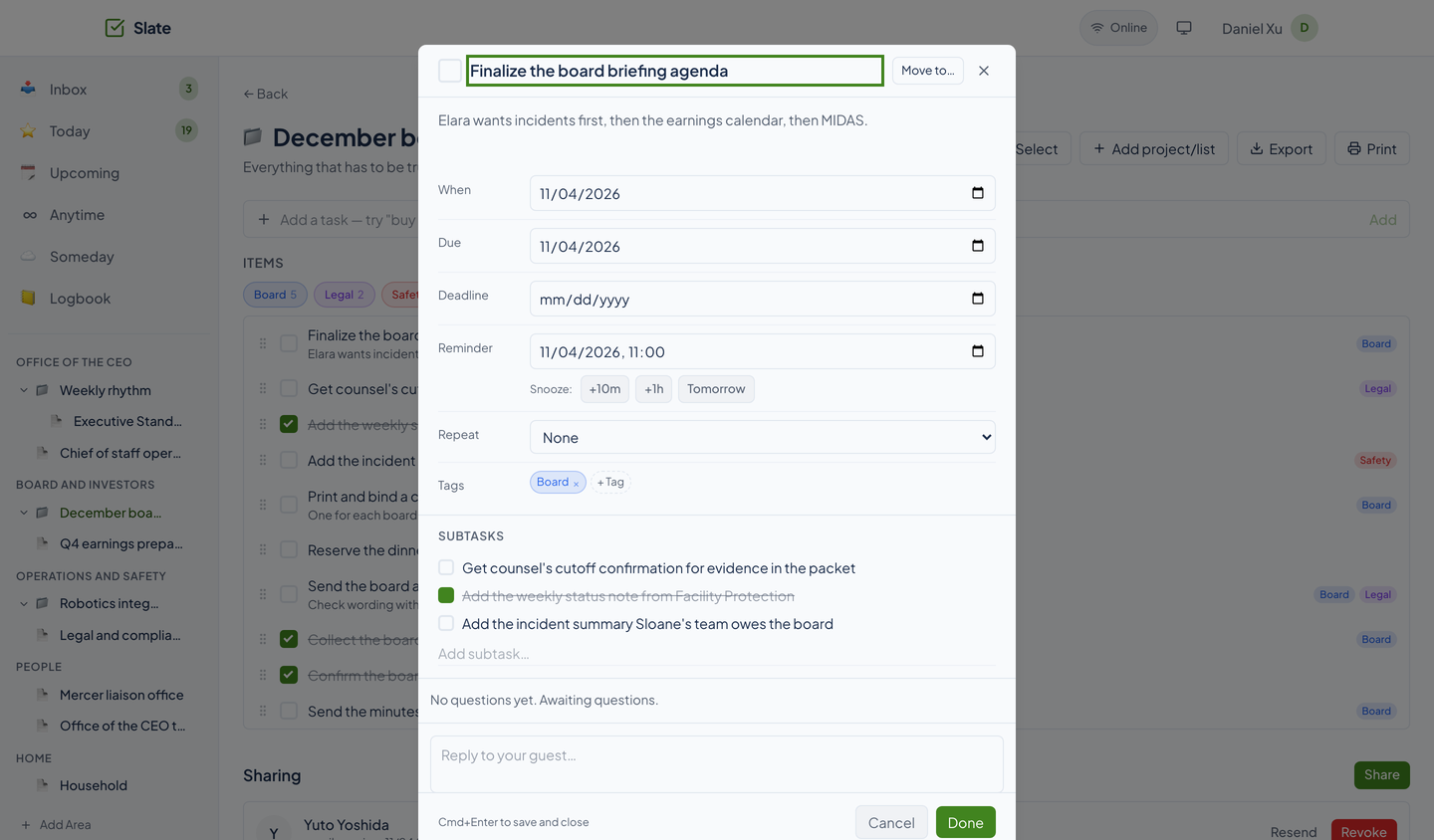
Click a task to open it. Besides its name and a description, a task has a start date (When), a due date, a deadline, a reminder with snooze buttons for 10 minutes, an hour, or tomorrow, a repeat, tags, and subtasks. Cmd or Ctrl+Enter saves and closes; Escape closes.
The Repeat menu offers None, Daily, Weekly on chosen weekdays, and Monthly. A repeating task makes its next occurrence when you check the current one off. The engine behind it follows the iCalendar rule format and can do more than the menu shows (intervals, ordinals such as the second Tuesday, a count, an end date); those rules come from Quick Add, the API, and the agent tools today.
Areas, projects, lists, and tags
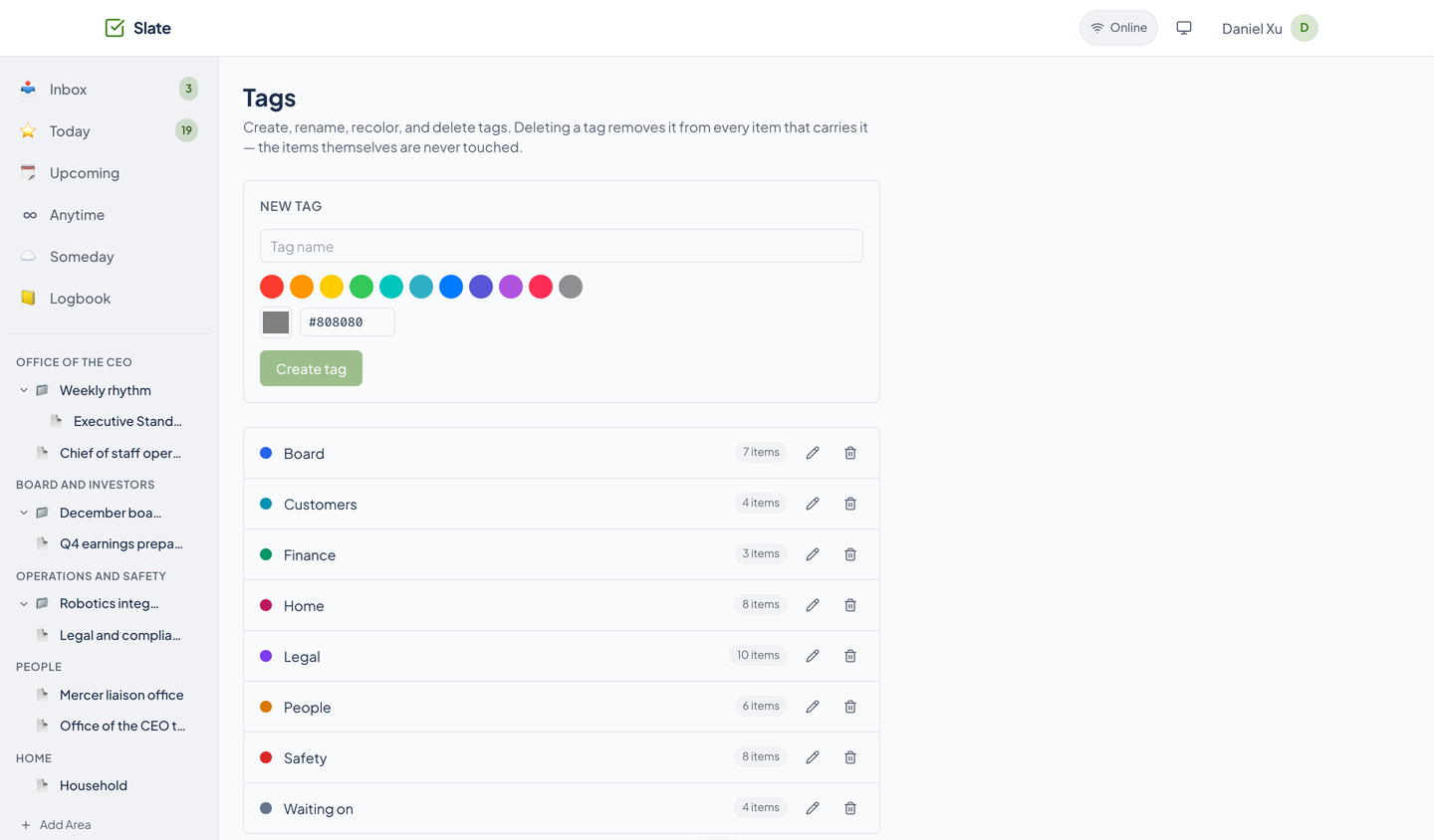
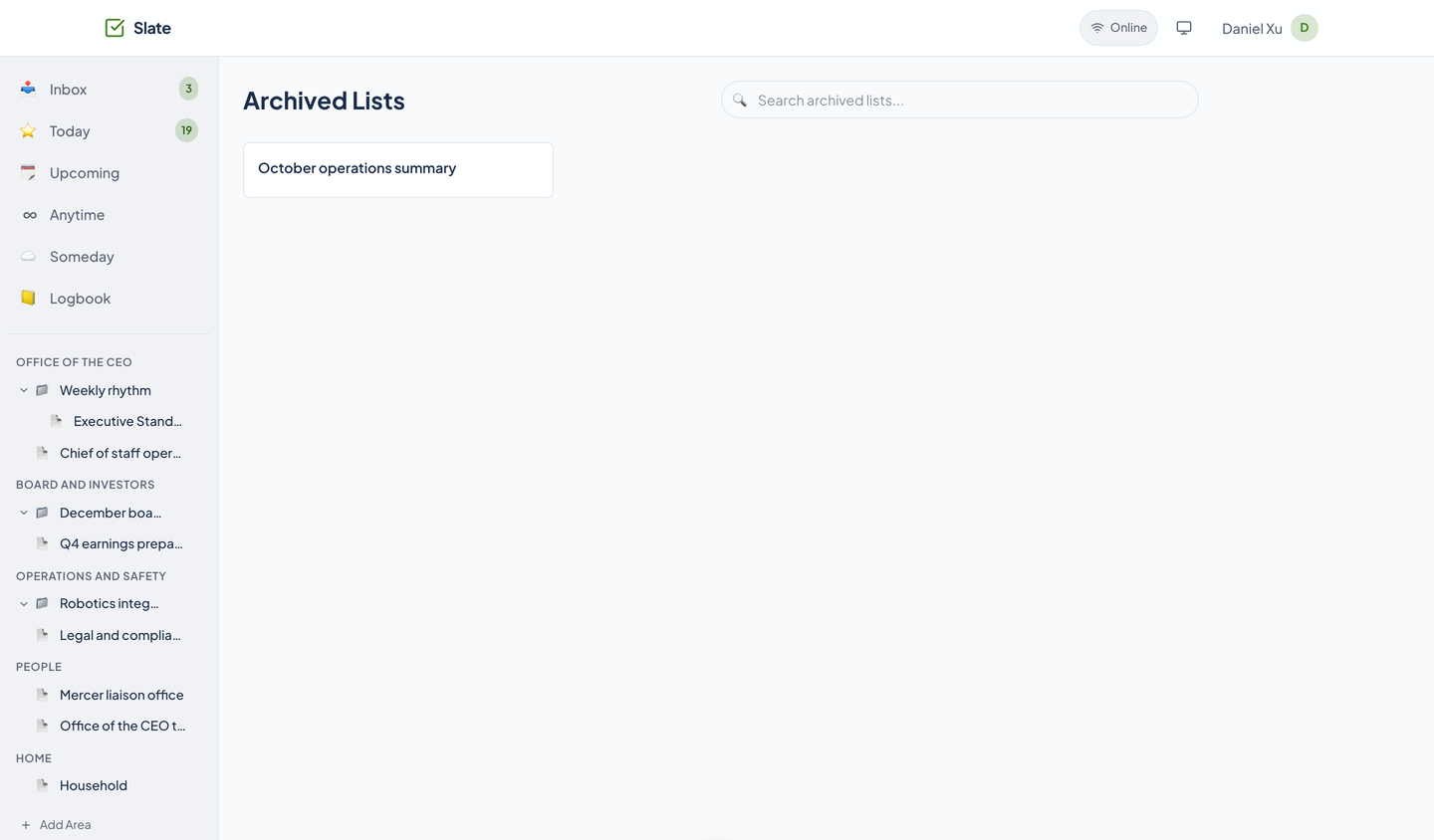
Areas group your work, such as Office of the CEO or Home. Under an area sit projects and lists, which are the same kind of thing and can nest. Archive one and it moves to Archived, where you can restore it. Tags are yours, colored, and counted on their own page.
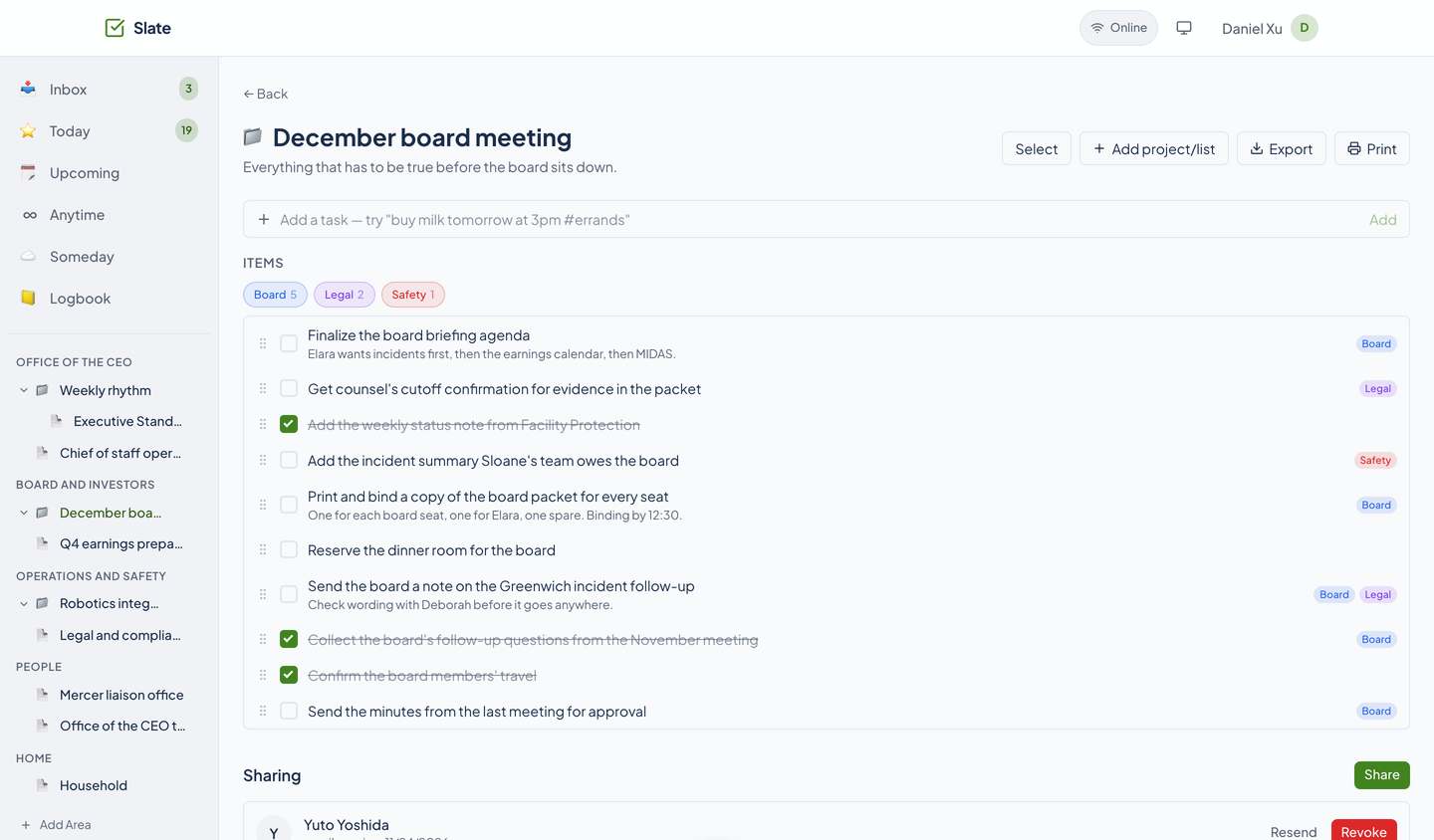
Select, drag to reorder, and undo are on project and list pages. A project exports as CSV or JSON, and prints from the browser with the app chrome removed.
Questions about this tool?
Write to Renkara Media Group and a person will answer.